


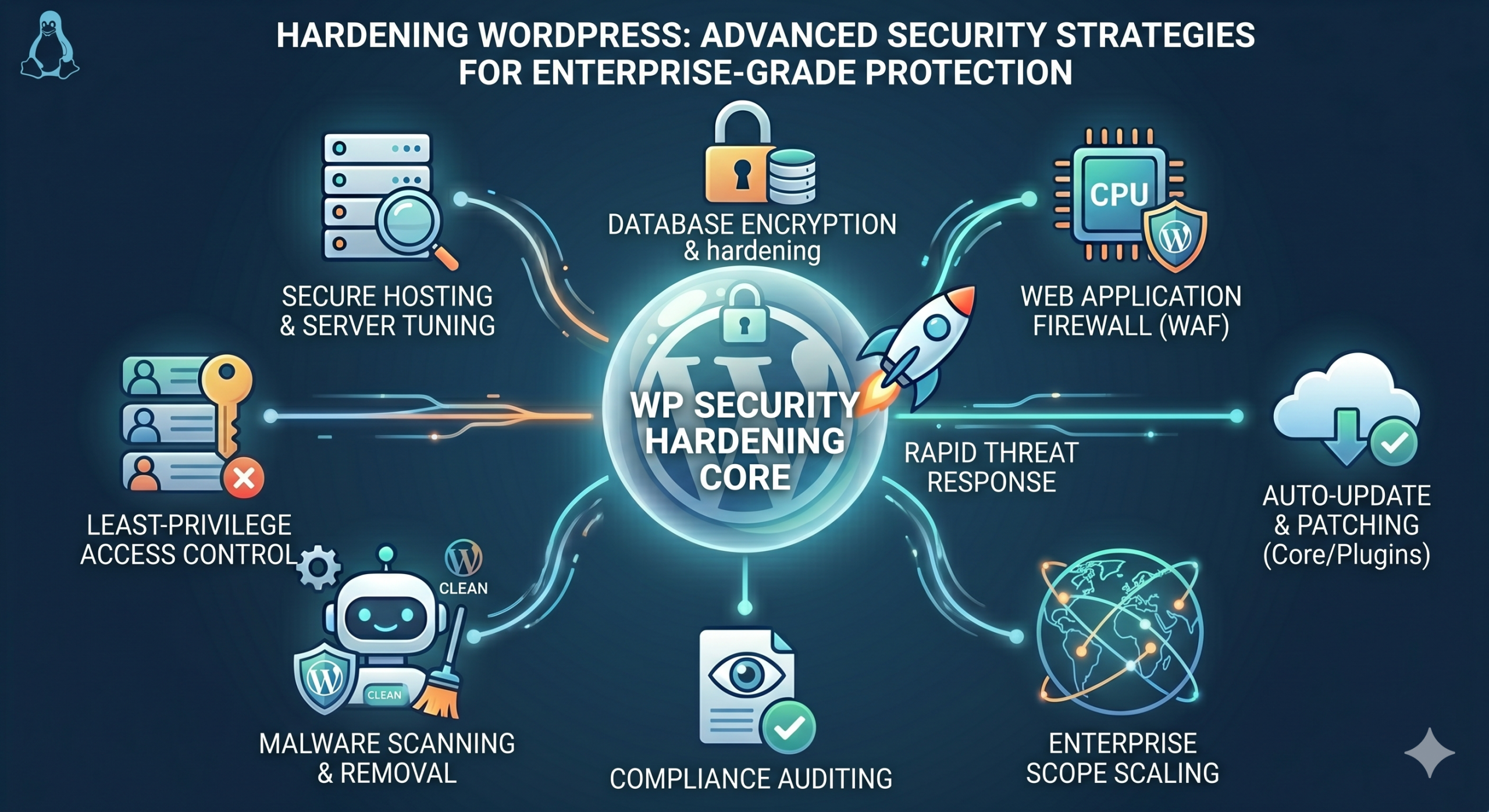
Hardening WordPress: Advanced Security Strategies for Enterprise-Grade Protection
WordPress powers over 40% of the web, making it the most targeted Content Management System globally. While the core software is robust, the ecosystem of plugins, themes, and server-side configurations often leaves a massive attack surface. For sysadmins and developers managing high-traffic WordPress installations, hardening the environment is not a luxury—it is a critical operational requirement. In this guide, we explore advanced strategies to secure your WordPress architecture, moving beyond basic password management into the realm of system-level fortification.
1. Restricting File System Permissions and Ownership
A common vulnerability vector involves the web server having write access to sensitive files. By default, many configurations set the entire public_html directory to be owned by the web server user (e.g., www-data). This is a security risk. If a plugin is compromised, an attacker can modify your core files.
Implementing Least Privilege
Ensure that your core files are owned by a non-web-server user and are read-only. Use the following commands to enforce strict permissions:
# Set directories to 755
find /var/www/html -type d -exec chmod 755 {} ;
# Set files to 644
find /var/www/html -type f -exec chmod 644 {} ;
# Prevent WordPress from modifying core files
chmod 444 /var/www/html/wp-config.php
This structure ensures that even if an attacker executes code via a malicious plugin, they cannot easily inject backdoors into your core wp-admin or wp-includes directories.
2. Implementing Hardened Nginx/Apache Configurations
The web server is your first line of defense. Exposing sensitive files like .env, .git, or wp-config.php.bak is a rookie mistake that attackers scan for constantly. We recommend adding specific security headers and access blocks.
Example Nginx Configuration for Security
Add these rules to your Nginx server block to block access to sensitive dot-files and restrict execution in the uploads directory:
location ~ /. { deny all; access_log off; log_not_found off; }
location /wp-content/uploads/ {
location ~ .(php|php5|phtml)$ {
deny all;
}
}
By blocking PHP execution in the uploads folder, you mitigate the risk of attackers uploading a web shell disguised as an image and executing it remotely.
3. Database Hardening and Prefix Modification
The default wp_ database prefix is well-known and targeted by SQL injection bots. While changing the prefix does not prevent SQL injection, it breaks automated scripts that rely on default naming conventions. Additionally, consider using a dedicated database user with restricted privileges.
Instead of granting ALL PRIVILEGES to your WordPress user, grant only the necessary permissions required for the application to function:
GRANT SELECT, INSERT, UPDATE, DELETE, CREATE, DROP, INDEX, ALTER ON wordpress_db.* TO 'wp_user'@'localhost';
FLUSH PRIVILEGES;
Note that DROP and ALTER are only strictly necessary during plugin updates or schema migrations. For a hardened production environment, you might consider temporarily granting these permissions only when performing updates.
4. Server-Side Protection: Fail2Ban and WAF
Brute force attacks on xmlrpc.php and wp-login.php are inevitable. Using a Web Application Firewall (WAF) like ModSecurity or a Cloud-based solution (Cloudflare/Sucuri) is essential. However, local protection via Fail2Ban provides an additional layer of latency-free defense.
Configuring Fail2Ban for WordPress
Create a custom filter to monitor your authentication logs:
[wordpress]
enabled = true
port = http,https
filter = wordpress
logpath = /var/log/nginx/access.log
maxretry = 5
bantime = 3600
By monitoring the access logs for repeated 401 Unauthorized errors, Fail2Ban can dynamically block malicious IPs at the firewall level (iptables/nftables), preventing the request from ever reaching the PHP-FPM process.
5. Disabling Unnecessary XML-RPC and REST API endpoints
Unless you are using the mobile app or specific remote services, the xmlrpc.php file is a liability. It allows for amplification attacks and brute force bypasses. To disable it entirely, add the following to your Nginx configuration:
location = /xmlrpc.php {
    deny all;
    access_log off;
    log_not_found off;
}
6. Regular Integrity Monitoring
Even with the best configuration, a zero-day in a third-party plugin can compromise your site. Implementing File Integrity Monitoring (FIM) allows you to detect changes in real-time. Use tools like AIDE (Advanced Intrusion Detection Environment) or simple checksum comparisons via cron jobs.
# Example: Daily checksum verification for core files
find /var/www/html -type f -name "*.php" -exec md5sum {} + > /var/log/wordpress_checksums.md5
By comparing these checksums daily against a known-good baseline, you can alert your sysadmin team immediately if a core file has been tampered with.
Conclusion
Securing a WordPress environment is an iterative process. By combining rigid file permissions, robust server-side security headers, database privilege limitation, and automated log monitoring, you transform a standard WordPress installation into a resilient, enterprise-ready platform. Remember that security is not a ‘set and forget’ task; stay informed about the latest CVEs, keep your PHP version updated (PHP 8.2+ is highly recommended), and always maintain an off-site, encrypted backup strategy.
